

BRAVIA Meeting Free
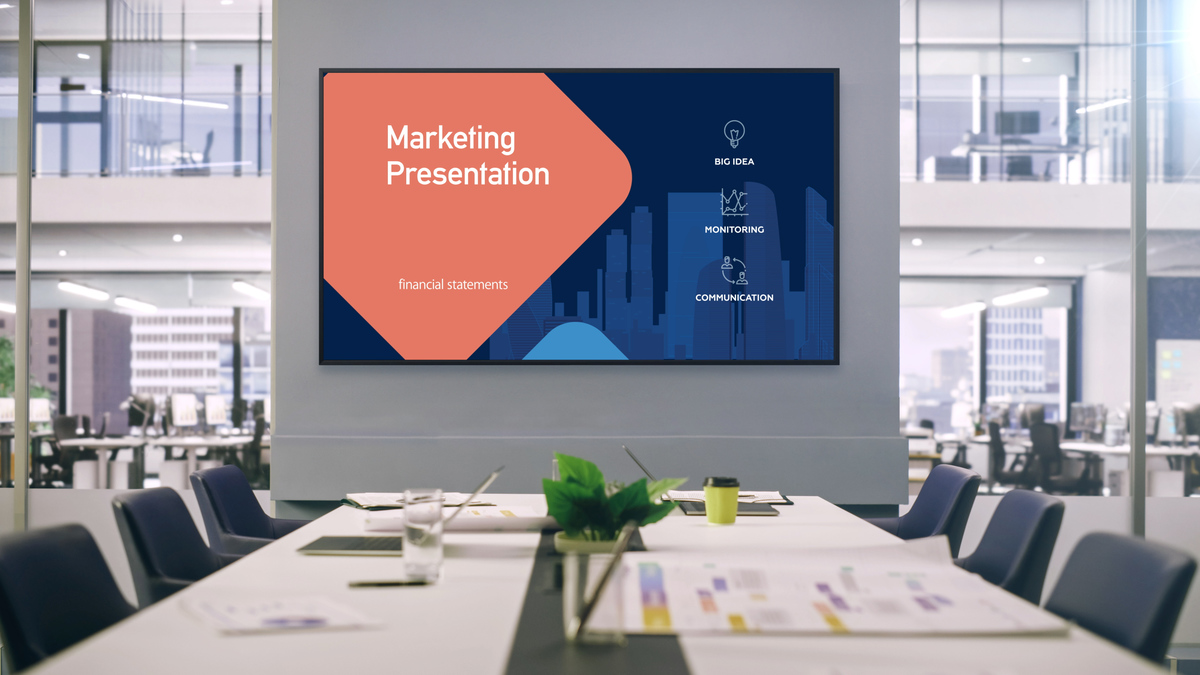
BRAVIA Meeting Free is software that improves meeting productivity. It provides functions to facilitate smooth meeting progress and encourage active participation from attendees, and can be utilized in various locations such as conference rooms, executive rooms, and meeting spaces.
Features
Auto Input & Power Switching
Input automatically switches based on the connection. The power also turns off automatically when inactive, saving energy.
Streamline Meeting Operations
Display a presentation timer for remaining time, and assign URLs such as internal manuals to the [Blue] button on the remote control.
Highly Customizable
Set any image, video, or web page as the [Home] screen background. You can also customize external input names and icon images.
BRAVIA Meeting Free Functions
- Automatic Input Switching
Automatically switches monitor input based on the connection. Displays the PC screen without [Input Selection] operation, regardless of which HDMI input the PC is connected to. - Auto Power Off
The monitor automatically powers off when a certain period of time has passed with no input or no operation. - Presentation Timer
Set the presentation time and start the countdown with the remote control. The timer can also be displayed on the monitor. - Custom [Home] Screen Settings
Set still images, video playback, any web page, and more. You can also customize [Home] screen and external input names and icon images. - [Help] Link Settings
Press the [Blue] button on the remote control to open any web page URL.
Preparation
Requirements
- Monitor and remote control
Required Settings
Simply install BRAVIA Meeting Free from [Pro settings] → [Startup services].
No additional settings are required for basic use. For specific needs, configure the following settings.
To sync the time, connecting the monitor to a network is recommended. Both wired and wireless LAN are supported.
[Date and Time] Settings
In [Monitor settings], enable [Automatic date & time] and [Sync time with network], and confirm the time is displayed correctly.
Procedure: [Settings] → [System] → [Date & time]
Proxy settings
Configure proxy settings if required.
Procedure: [Settings] → [Network & Internet] → [Proxy settings]
NTP server sync
In [Pro settings], specify the NTP server address. Configure as needed.
Procedure: [Pro settings] → [NTP server]
Tips:
When the monitor cannot connect to a network:
- To set the correct time, press [Home] → [9] on the remote control while BRAVIA Meeting Free is running in Pro mode.
- Time settings are reset when the software restarts or the monitor is powered off.
Therefore, connecting the monitor to a network and configuring the time in [Monitor settings] is recommended.
Procedure: [Settings]→[System]→[Date & Time]
USB drive preparation
USB drive: NTFS, FAT32, or exFAT format
Enable [Install web app]
To set your favorite images or videos as the home screen background, save them to the built-in storage using a USB drive.
[Install web app] must be enabled.
Procedure: [Pro settings]→[USB drive auto run]→[Install web app]
Tips:
Enabling [Wake-up on signal] in [Pro settings] is not required.
- Even when the monitor is powered off, connecting via HDMI automatically turns the power on and switches to the connected input.
- If an external device is already connected and its input is selected, connecting another device to a different HDMI port automatically switches to the newly connected input.
- Disconnecting the newly connected external device automatically switches back to the previously connected input.
BRAVIA Meeting Free Setup Method
After installing BRAVIA Meeting Free, switch to “Pro mode.”
While the [Home] screen is displayed, press the [Play] button on the remote control.
The settings dialog will appear. Configure the following settings as needed.
Setting Items
| Setting Item | Explanation |
|---|---|
| [Home screen] > [Title] | Set the meeting room name or organization name displayed on [Home]. |
| [Home screen] > [Subtitle] | Set the meeting room name or organization name displayed on [Home]. |
| [Home screen] > [Clock] | Display a clock on [Home]. Enable to display. |
| [Home screen] > [Web frame] | Specify the frame size and URL of a web page displayed on [Home]. Frame size: [None]: Do not display. [Half]: Display the specified web page on the lower half of the monitor. [Full]: Display the web page in full screen. Note: Web pages that do not allow display within an iframe due to X-Frame-Options HTTP response header cannot be displayed. See here to set [Home] to your preferred still image or video content. |
| [Power] > [ Auto power off] | Automatically power off the monitor after a set period of inactivity on [Home]. Can be set in 1-minute increments. |
| [Power] > [Auto reboot] | Set whether to automatically restart the monitor at regular intervals. When enabled, restarts when the monitor has not been in use for a certain period. |
| [Inputs] | Set the label text for inputs. |
| [Help URL] | Specify the URL for the [Help page] displayed by the [Blue] button on the remote control. When specified, the default page is replaced. |
| [Settings lock] | Set a PIN for opening the settings dialog. Once set, PIN entry is required to open the settings dialog. |
Operation Methods
Remote Control Operations
All functions can be operated by remote control.
| Remote Control Button | Monitor Action |
|---|---|
| [↑][↓][←][→][Enter]button | Displays the menu. |
| “0” button | Toggles the status bar in the top right corner of the screen. Always displayed on the [Home] screen. |
| “1” button | Switches external input to HDMI 1. |
| “2” button | Switches external input to HDMI 2. |
| “3” button | Switches external input to HDMI 3. |
| “4” button | Switches external input to HDMI 4. |
| “9” button | Displays the time setting dialog box. |
| “Play” button | Displays the setting dialog box. |
| “Red” button | Displays the presentation timer of the menu. |
| “Blue” button | Displays Help. |
Using the Touch Panel
If a separately prepared touch panel is installed, touch anywhere on the monitor to display the menu guide. Touch [Menu guide] to display the menu.
Home Background Setup Method
Follow the steps below to set your favorite images or videos on the [Home] .
The same procedure applies when updating the background. The content in the media folder will be saved, and existing data in the built-in storage will be deleted.
1. Download the sample folder and extract the ZIP file.
2. Copy the “sony” and “media” folders to the root of the USB drive.
3. Place the content you want to display in the media folder.
4. Insert the USB drive into the monitor. A permission dialog for [Install web app] will appear.
5. Select [OK]. The content will be saved to the built-in storage and automatically displayed as the background.
[Home] Content Behavior
1. Single content
If the content is only one still image, that still image is always displayed.
Note:
Note that subfolders are not supported.
2. Multiple content
Playback order
Content is played in alphabetical order of the file names saved in the sample media folder, regardless of file type (image or video).
Playback duration
For videos, the playback duration is the length of the content. For images, the default playback duration is 10 seconds.
You can specify the playback duration by adding (30sec) before the file extension, as shown below.
Example File name with specified playback duration
image(30sec).pngSupported Content Formats and Extensions
Many types are supported. For details, see here.
Presentation Timer Operation Method
1. For remote control operation
- Menu display: Press any of [↑], [↓], [←], [→] or [OK] on the remote control to display the menu.
- Timer Setting: Use the [↑] and [↓] buttons on the remote control to adjust in 1-minute increments.
- Start Timer: Press the [OK] button on the remote control to start the countdown.
2. When Using the Touch Panel
Even with a separately prepared touch panel, remote control operations remain available. Additional touch panel operations.
- Timer Setting: Touch the time setting area in the menu to adjust in 1-minute increments.
- Start Timer: Touch the time setting area in the menu again to start the countdown.
The countdown is always displayed in the top-right corner of the screen. An on-screen notification appears when the countdown reaches zero.