

Crestron Integration

Crestron XiO Cloud,
Crestron Connected
Bravia Professional Displays supports Crestron XiO Cloud and Crestron Connected for seamless integration with Crestron’s professional AV control systems. Control power, switch inputs and adjust volume from Crestron touch panel or PC. It supports efficient operation and centralized management for meeting rooms, classrooms and signage applications.
For details on each service, see below.
Crestron XiO Cloud
Features
Centralized Remote Management
Supports Crestron Connected™ certified by Crestron, enabling direct connection and control with Crestron control systems. An integrated environment can be built without external modules or additional settings.
Real-Time Issue Awareness
Real-time alerts and notifications detect issues and communication failures faster than on-site teams. Address problems before they become critical to prevent operational downtime.
Secure Cloud Foundations
It operates in a connected environment based on Microsoft Azure. It also supports access permissions and operation log management, so companies and educational institutions can use it with confidence.
How to Use
1. View Information on the Monitor
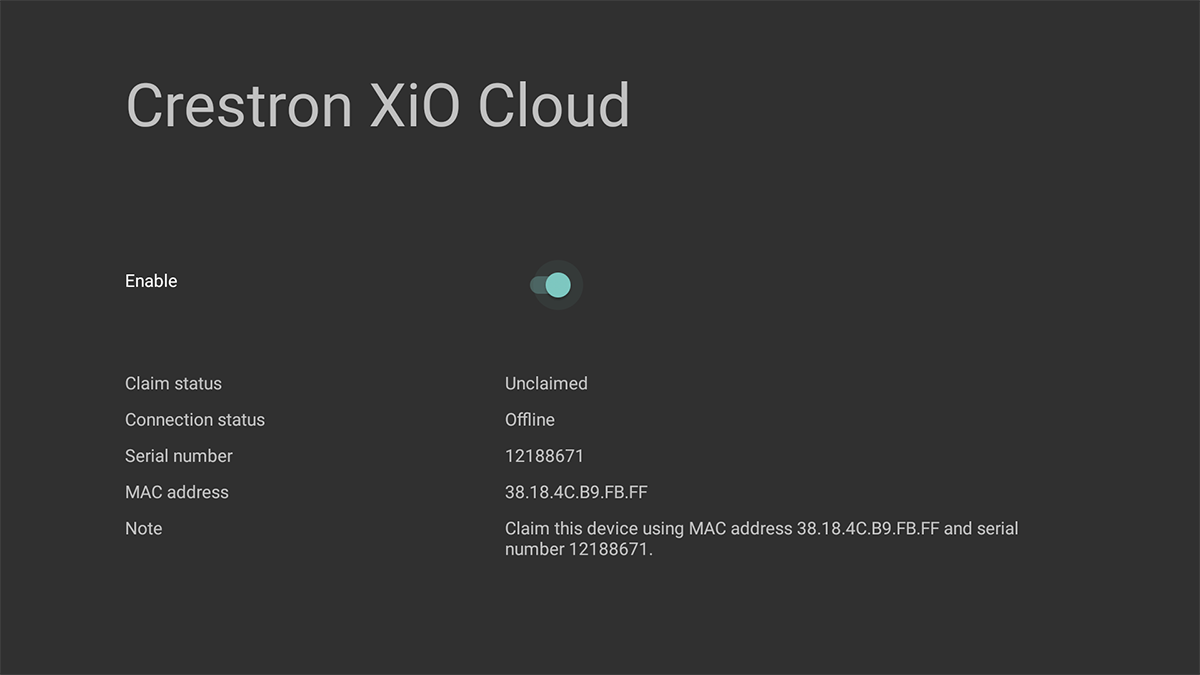
Select Crestron XiO Cloud from the application list on the [Home] screen in the “Pro settings” environment, and the status screen will display the serial number and MAC address.
2. Register Using PC Browser
- Log in to Crestron XiO Cloud using a PC browser
- Select Group > ENVIRONMENT > Claim Device from the menu
- Enter the serial number and MAC address displayed on the monitor, then select [Confirm]
- The device has been registered in “Unassociated Devices”; move it to the appropriate Group/Room
*The GUI is subject to change without prior notice.
Crestron Connected™
Features
Direct Integration with Certified Support
It supports Crestron ConnectedTM certified by Crestron, enabling direct connection to and control from Crestron controllers and allowing you to build an integrated environment without the need for external modules or additional configuration.
Batch Control over the Network
You can control main monitor operations such as power control, input selection and volume adjustment via LAN. It is also suitable for managing multiple displays at once in environments like a conference room or classroom.
Easy Integration into Infrastructure
It is highly compatible with existing Crestron AV infrastructure, reducing installation and configuration workload. Easily integrate into integrated control systems in commercial, educational, and corporate settings.
Required Monitor Settings
1. Set Admin Password
Set the password used to authenticate the remote management functions.
Procedure:[Pro settings]→[Admin password]
2. Install “Crestron Connected™”
Select from the list of [Launch services] in the “Pro settings” menu to run the installer. Follow the on-screen instructions. The monitor will restart to complete the installation.
How to Use
1.Select Crestron Connected™ from the Application List on the [Home] Screen
Enter the following information to log in.
Login Information
Username: admin
Password: Password set in [Admin password] in Pro settings
2. Settings on the Crestron Connected™ Screen
Refer to your Crestron Corporation™ product catalog.