

BRAVIA Signage (Paid) Network Security Measures
Encryption of Communications
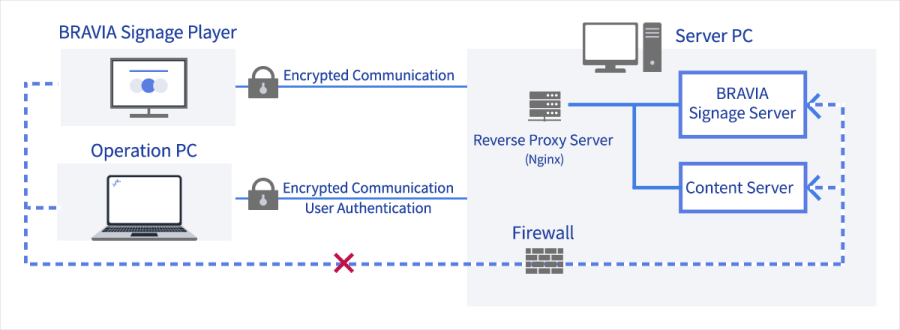
To prevent unauthorized access to the BRAVIA Signage Server by malicious users, use authentication or a reverse proxy to validate access from the operation PC. To prevent direct access to the server PC, configure the firewall to block communication from devices other than the reverse proxy.
Encryption Image
Access Restrictions
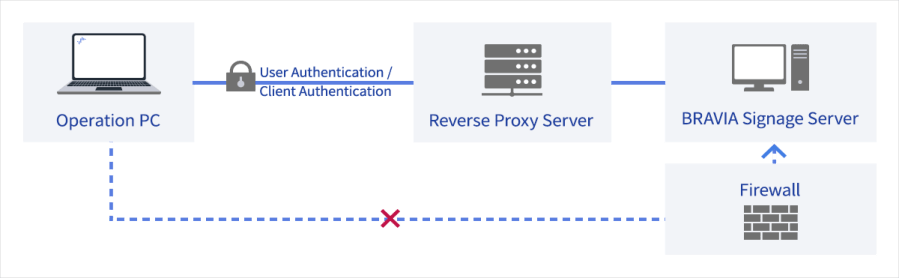
Similarly, to avoid the risk of unauthorized access to the BRAVIA Signage Server by a malicious user, use the BRAVIA Signage Server’s [Authentication] or reverse proxy to enforce authentication for access from the operation PC*. In addition, to prevent direct access to the server PC without the reverse proxy, set up a restriction rule on the firewall of the server PC to deny communication from any source other than the reverse proxy.
*The connection between the BRAVIA Signage Server and the BRAVIA Signage Player does not support [Authentication].
Authentication Image
Reverse Proxy and Firewall Configuration Examples
This section provides a sample procedure for creating a reverse proxy and firewall on the same PC as the BRAVIA Signage Server and the Content Server (optionally). The default port numbers are assumed to be 8080 for the BRAVIA Signage Server and 80 for the Content Server.
*Subject to change by Nginx without notice. See Nginx for details.
Building a Reverse Proxy Using Nginx – Diagram
- Download and install Nginx on the server PC.
-
Obtain or create a server certificate, private key, and add HTTPS configuration to Nginx.
・ See details about configuring HTTPS servers
・When using a self-signed certificate, keep the private key under strict control to prevent unauthorized use. -
Create a user file (.htpasswd) and add user authentication settings to Nginx.
・ See details about the Module ngx_http_auth_basic_module
Windows Firewall Configuration Example
*Subject to change by Windows without notice. See Windows for details.
Server PC Firewall Configuration
Use the firewall on the server PC to restrict direct access from the client to the server PC without the reverse proxy.
Configuration Using GUI
- Open Windows Firewall settings.
Procedure: [Windows Settings] → [Update & Security] → [Windows Security] → [Firewall and Network Protection] - Create a new rule to block communication on the port used by the server.
Procedure: [Select Inbound Rules] → [Action] → [New Rule] - Select “Port”.
For more information, refer to the manual.